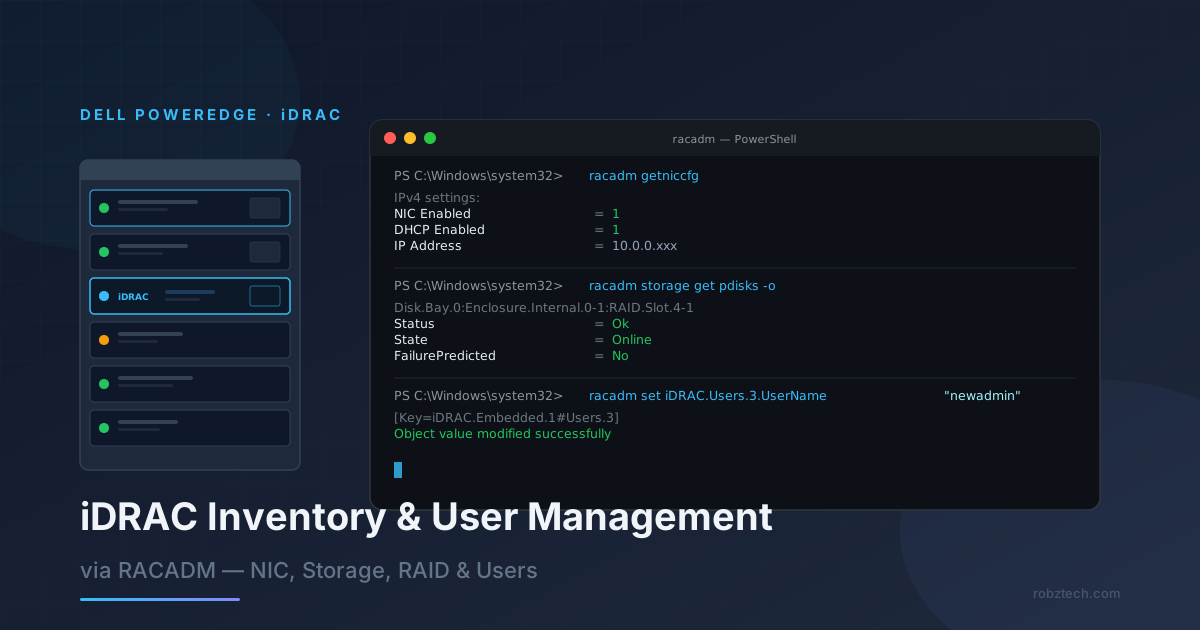
iDRAC Inventory and User Management via RACADM
A practical guide to querying Dell iDRAC out-of-band using RACADM — covering NIC configuration, full storage inventory (controllers, virtual disks, physical disks, BBU), and local user management from the command line.
Dell iDRAC (Integrated Dell Remote Access Controller) is the out-of-band management interface built into every PowerEdge server. While the web UI covers most tasks, RACADM (Remote Access Controller Admin) gives you scriptable, automatable access to everything iDRAC exposes — NIC configuration, full storage inventory, user management, firmware versions, and more. This guide covers the most useful RACADM queries and user management operations you will run in a production environment.
Prerequisites
| Requirement | Details |
|---|---|
| RACADM installed | Included with Dell OpenManage Server Administrator (OMSA). Local RACADM runs on the server OS; remote RACADM runs from any management station with the Dell Systems Management Tools package. |
| Run as Administrator | All RACADM commands on Windows require an elevated PowerShell or CMD prompt. |
| iDRAC credentials | For remote RACADM: -u, -p, and -r flags with the iDRAC IP. For local RACADM (run on the server itself): no credentials required. |
| iDRAC licensed features | Basic inventory and user management are available on iDRAC Express. Some enterprise features (group management, virtual media) require iDRAC Enterprise licence. |
racadm -r <iDRAC-IP> -u root -p <password> <command>. The commands in this guide work identically for both; omit the -r/-u/-p flags when running locally.NIC and Network Configuration
The first thing to check on any iDRAC is the management NIC configuration — confirm DHCP state, the assigned IP, and whether IPv6 is enabled. getniccfg returns both IPv4 and IPv6 in a single call:
1# Run as Administrator
2racadm getniccfg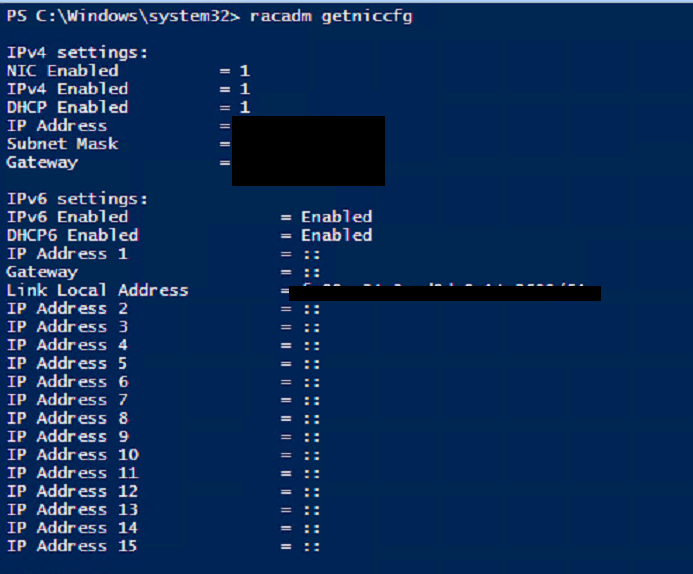
Key fields to note:
| Field | What it tells you |
|---|---|
| NIC Enabled = 1 | The iDRAC management NIC is active |
| DHCP Enabled = 1 | iDRAC is obtaining its IP via DHCP — set to 0 to assign a static IP |
| IP Address / Subnet / Gateway | Current management IP — blacked out in production; always document this |
| IPv6 Enabled = Enabled | iDRAC will respond on IPv6 as well — disable if your network does not use IPv6 |
| Link Local Address | Auto-assigned fe80:: address — always present even when DHCP6 is on |
To set a static IPv4 address:
1racadm set iDRAC.IPv4.DHCPEnable 0
2racadm set iDRAC.IPv4.Address 10.0.0.50
3racadm set iDRAC.IPv4.Netmask 255.255.255.0
4racadm set iDRAC.IPv4.Gateway 10.0.0.1
Storage Inventory
A complete storage audit requires four commands — controllers, virtual disks, physical disks, and the cache/battery (BBU) status. Run them together for a full picture before any maintenance window:
1# 1. RAID controller details: model, firmware, driver, slot
2racadm storage get controllers -o
3
4# 2. Virtual disks: RAID level, state, stripe size, members
5racadm storage get vdisks -o
6
7# 3. Physical disks: every drive with model, PN, SN, state, failure prediction
8racadm storage get pdisks -o
9
10# 4. Cache and BBU status — critical for write performance under load
11racadm raid get controllers
Physical Disks — Full Detail
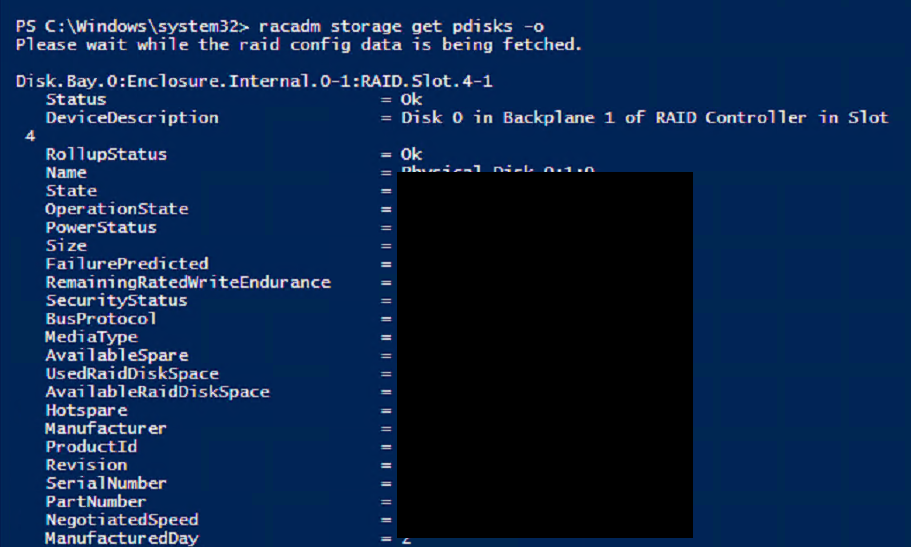
The pdisks -o output is the most useful for hardware audits — it surfaces failure prediction, remaining write endurance on SSDs, and exact serial numbers for RMA:
| Field | What to check |
|---|---|
| Status / RollupStatus | Both should be Ok — any Critical or Warning here needs immediate investigation |
| State | Online = healthy member; Failed = pull and replace; Ready = available spare |
| FailurePredicted | Yes means the drive is reporting imminent failure via SMART — evacuate data now |
| RemainingRatedWriteEndurance | SSD wear indicator — below 10% means the drive is near end-of-life for writes |
| MediaType | HDD vs SSD — matters for write cache and spare configuration decisions |
| BusProtocol | SAS vs SATA — mixed configurations affect RAID performance |
| SerialNumber / PartNumber | Required for Dell support cases and warranty replacement orders |
racadm raid get controllers output includes the Battery Backup Unit state. If the BBU is absent, charging, or failed, the RAID controller drops to write-through mode — writes are not cached, and performance degrades significantly. Check this before load testing or benchmarking a server.User Management
iDRAC supports up to 16 local users (slots 1–16). Slot 1 is reserved for the anonymous user (disabled by default). Slot 2 is typically the built-in root account. Always audit existing users before adding new ones:
1# List all configured user slots
2racadm get iDRAC.Users
3
4# Check a specific slot in detail (e.g., slot 2 = root)
5racadm get iDRAC.Users.2
Change an Existing User Password
The default root password must be changed immediately on any newly deployed server. Use slot 2 for the built-in root account:
1# Change the root (slot 2) password
2racadm set iDRAC.Users.2.Password "YourNewStrongPassword!"
The response [Key=iDRAC.Embedded.1#Users.2] confirms the change was applied to the embedded iDRAC and took effect immediately — no reboot or service restart required.
Create a New Admin User
Best practice is to create a named admin account rather than sharing the root credential. Use an empty slot (3–16):
1# Create a new admin user in slot 3
2racadm set iDRAC.Users.3.UserName "newadmin"
3racadm set iDRAC.Users.3.Password "StrongPassword123!"
4racadm set iDRAC.Users.3.Privilege 0x1ff    # Full administrator
5racadm set iDRAC.Users.3.Enable 1
6
7# Verify the user was created
8racadm get iDRAC.Users.3
Privilege levels are set as a bitmask. Common values:
| Privilege value | Access level | Use case |
|---|---|---|
| 0x1ff | Full Administrator | Named admin accounts — full control over all iDRAC functions |
| 0x0f3 | Operator | Power operations, virtual console, virtual media — no user management |
| 0x001 | Read Only | Monitoring accounts — view hardware state and logs only |
| 0x000 | No Access | Disabled account — effectively the same as Enable = 0 |
Disable or Delete a User
1# Disable a user (keeps the slot, removes access)
2racadm set iDRAC.Users.3.Enable 0
3
4# Fully clear a user slot (username, password, privilege)
5racadm set iDRAC.Users.3.UserName ""
6racadm set iDRAC.Users.3.Privilege 0x000
7racadm set iDRAC.Users.3.Enable 0Useful One-Liners
1# iDRAC firmware version
2racadm get iDRAC.Info.Version
3
4# Server model and service tag (for support cases)
5racadm get System.ServerInfo
6
7# iDRAC event log (last 10 entries)
8racadm getsel -o | Select-Object -Last 10
9
10# BIOS version
11racadm get BIOS.SysInformation.BiosVersion
12
13# Thermal/fan summary
14racadm get System.ThermalSettings
15
16# Power usage
17racadm get System.Power.Status
18
19# Reset iDRAC (does not affect the server OS)
20racadm racreset
Troubleshooting
| Error | Cause | Fix |
|---|---|---|
| ERROR: Unable to connect to RAC | RACADM service not running, or wrong iDRAC IP for remote | Check iDRAC network reachability; for local racadm, confirm OMSA is installed and running |
| ERROR: (SWC0231) Request to subsystem failed | iDRAC firmware is busy processing another operation | Wait 30 seconds and retry; if persistent, run racadm racreset and wait 2 minutes for iDRAC to restart |
| Object value modified successfully — but change not reflected | Some settings require a pending commit | Run: racadm jobqueue create BIOS.Setup.1-1 and reboot the server |
| ERROR: You do not have sufficient privileges | Connected user does not have the required privilege bit for the operation | Use an account with 0x1ff privilege, or check the specific privilege bit needed for the command |
| racadm not recognised as a command | OMSA not installed or not in PATH | Install Dell OpenManage Server Administrator and restart the shell; default path is C:\Program Files\Dell\SysMgt\rac5\ |
| getniccfg shows IP Address = (blank) | iDRAC has not received a DHCP lease, or NIC is not connected | Check the iDRAC NIC port on the server backplane; verify DHCP server availability on the management VLAN |
Related Posts


Comments
Loading comments...